Valigara handles certificate images separately from standard product images, making it easy to present gemstone certifications and appraisals directly in your product listings. Adding certificate images helps:
increase buyer trust
improve listing transparency
add perceived product value
provide a more professional shopping experience
Certificate images can be automatically published together with product images across connected sales channels.
TABLE OF CONTENTS
Certificate Images Page
The Certificate Images section allows you to manage certificates for multiple gemstones at once.
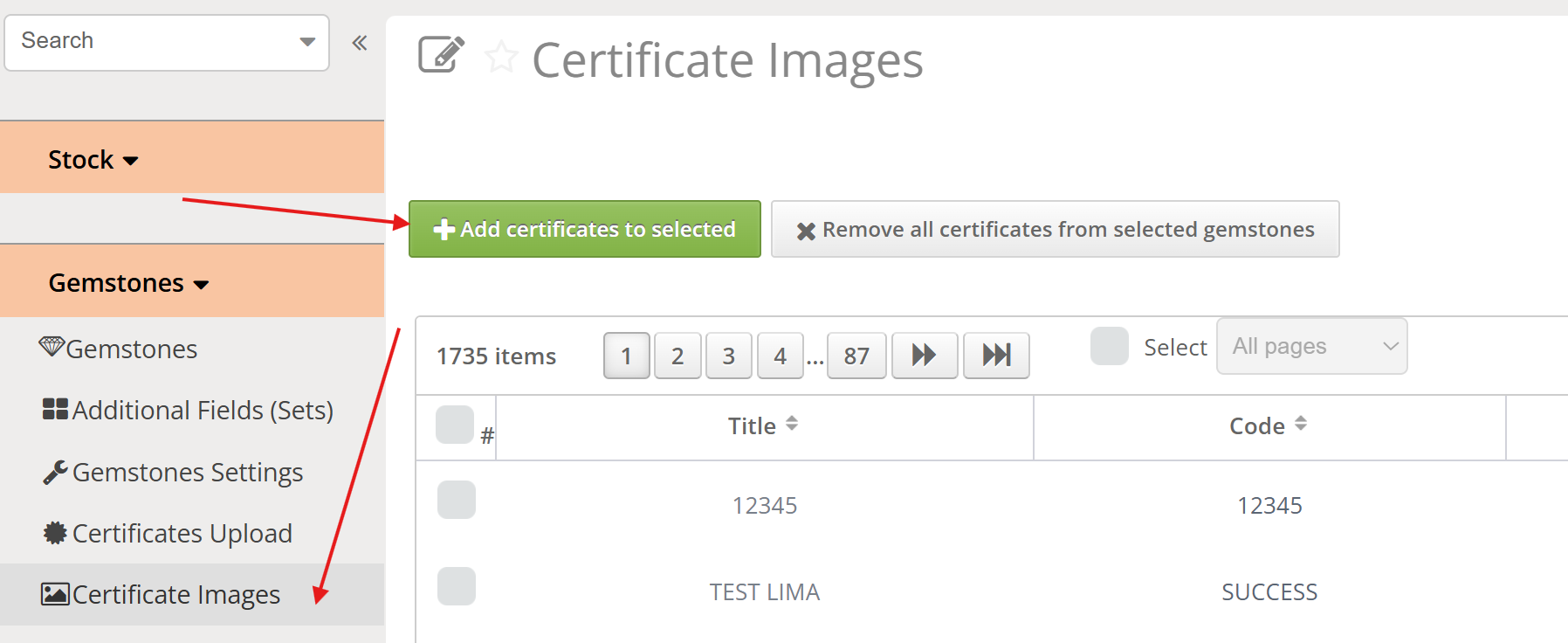
- Go to Inventory → Certificate Images.
- Use the search bar to filter and locate specific gemstones.
- Select multiple gemstones and click +Add certificates to selected
- Click Select Images to choose images to upload and click Yes
- 2 certificate images are available per gemstone. They are handled as "Gemstone Certificate 1" and "Gemstone Certificate 2"
- When uploaded, Valigara creates the PDF file from the image
- If the Certificate image is uploaded in the PDF format, the JPG version is created
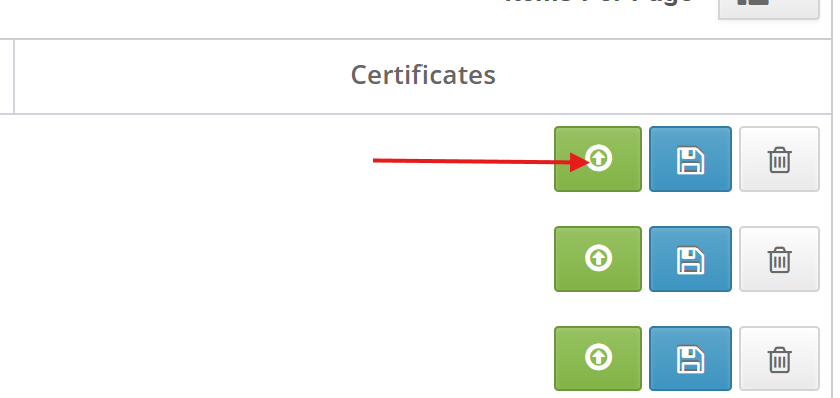
For single gemstones:
- click Upload images and select a local file to upload
- Click Save Certificates to apply
Remove Certificate Images
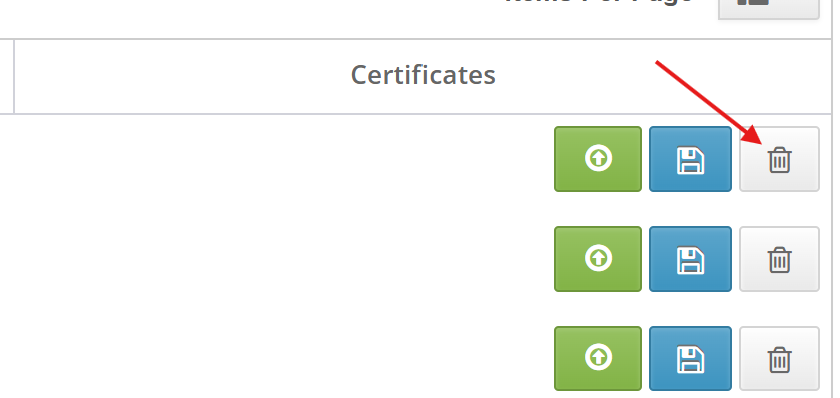
To delete certificate images:
Click the certificate image inside the Certificates column
Select the relevant image(s)
Click: Delete Selected icon
Bulk Certificate Upload
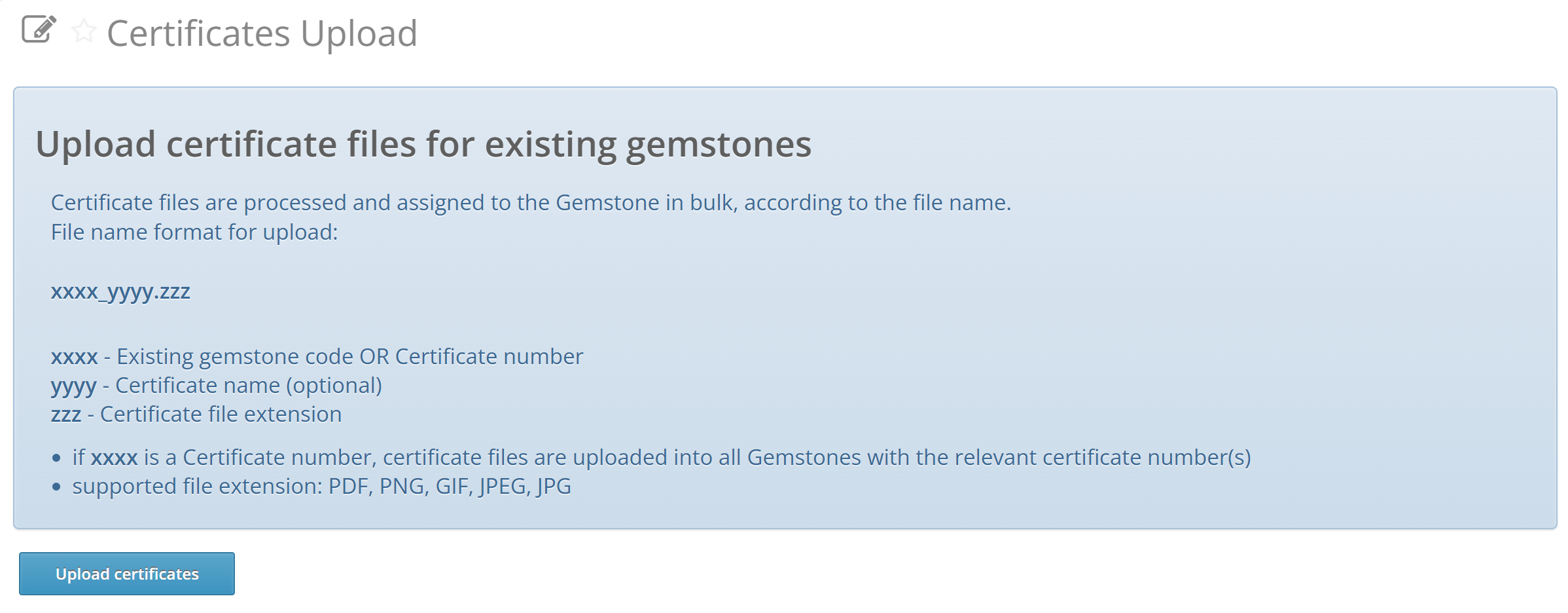
Valigara supports bulk uploading certificate files and automatically linking them to gemstones.
Certificate files are linked automatically when the file name contains:
the gemstone code,
or an existing certificate number stored in Valigara.
- Go to: Inventory → Certificates Upload
Click: Upload Certificates
Select local files to upload
Supported Certificate File Formats
Valigara supports:
PDF
PNG
GIF
JPEG
JPG
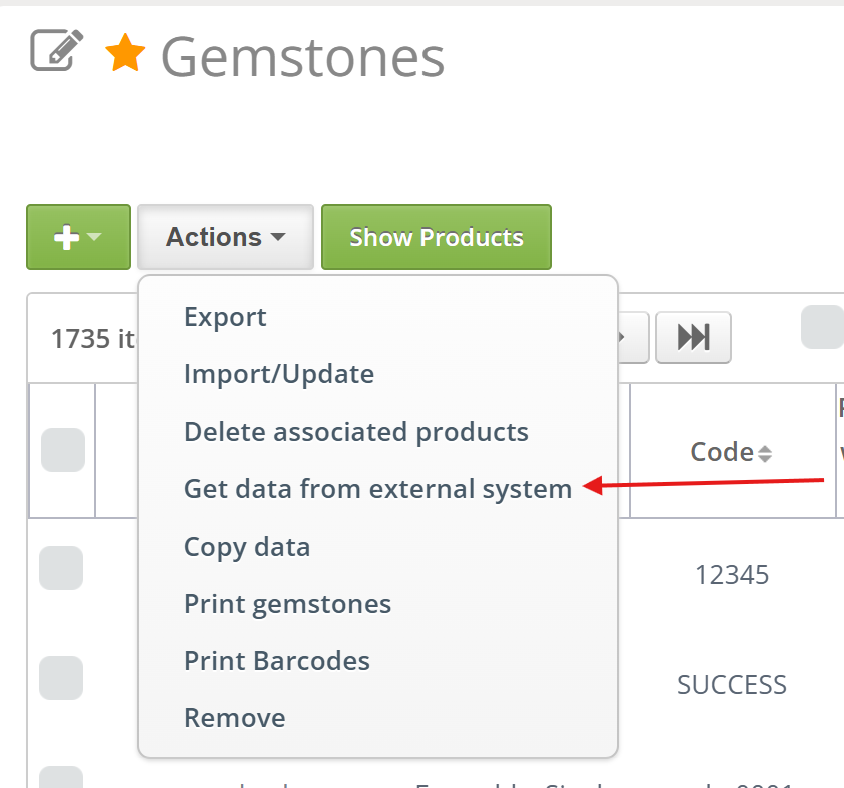
Fetch Certificate Data from GIA & IGI
Valigara can automatically retrieve:
gemstone parameters,
certification data,
and certificate files
directly from major gemological laboratories.
Supported integrations include:
Gemological Institute of America
International Gemological Institute
This helps reduce manual work and improves data accuracy.
View the integrations with the GIA/IGI article for detailed information
Global Certificate Settings
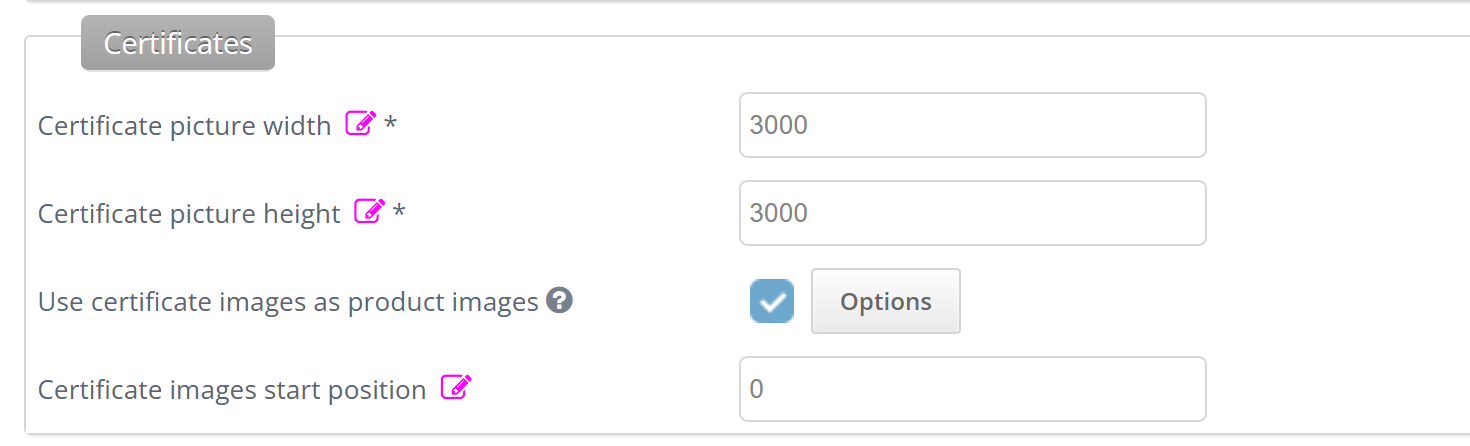
You can configure global certificate image behavior inside:
Global Settings
- Certificate Image Size - set the default certificate image dimensions used across the system.
- Use Certificates as Product Images - allows certificate and packaging images to appear together with standard product photos on marketplaces. By clicking Options you can set the visivility.
- Define Image Positions - you can define the exact order of certificate images inside the gallery.
Upload Certificates via Excel spreades
Certificate data can also be imported using spreadsheet files while importing or updating Gemstones or Products.
When importing certificate data:
map certificate columns to the correct Valigara fields,
verify mappings carefully before import.
Incorrect field mapping is one of the most common import issues.
Direct file links only - if certificates are imported using links:
the link must point directly to the file,
not to a webpage containing the file.
Incorrect URLs may prevent certificates from importing properly.
Was this article helpful?
That’s Great!
Thank you for your feedback
Sorry! We couldn't be helpful
Thank you for your feedback
Feedback sent
We appreciate your effort and will try to fix the article