Valigara provides a flexible import and update system that allows you to migrate inventory data from external spreadsheets quickly and efficiently.
Models can be imported individually or together with products as part of a complete product datasheet.
Valigara supports the following file types:
.xls.xlsx.csv.txt(CSV format)- Maximum upload size: 50 MB
 | Excel Formatting Is Not Supported Before importing:
Valigara imports data values only. |
TABLE OF CONTENTS
Mandatory Fields
To import models into Valigara, the following fields are required:
Model Code
Model Title
Model Type
Without these fields, the import cannot be completed.
Import and Update:
- Go to: Inventory → Models and click Import/Update Models;
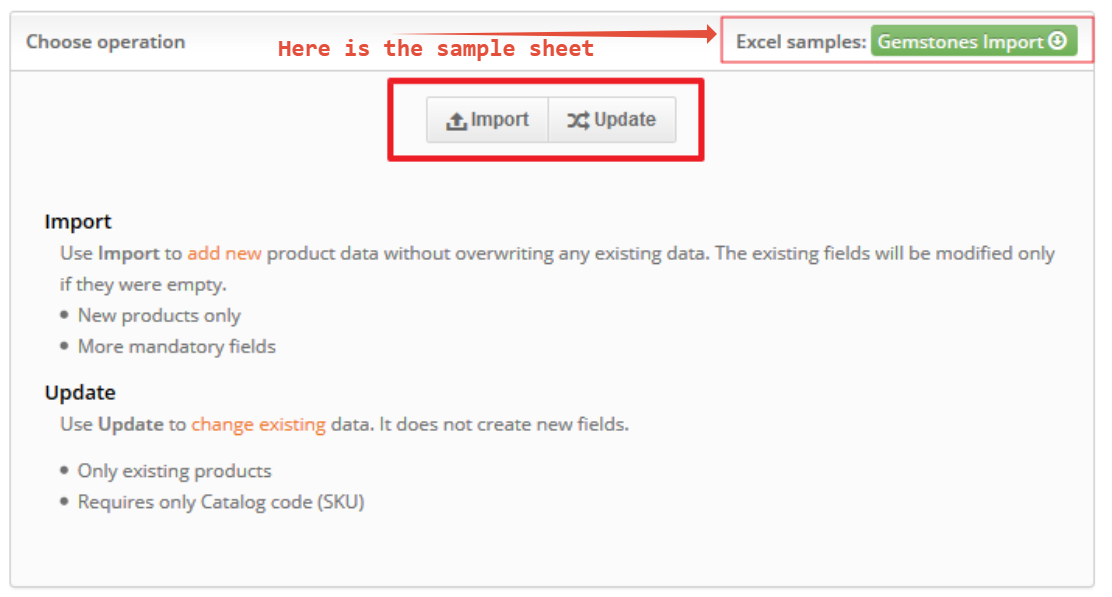
- Select the Operation Type. Valigara supports two import modes:
- Import → use this option to create new models in the system. The import file must contain at least the mandatory fields.
- Update → use this option to modify data for existing models. Only the Model Code is required.
- Select the spreadsheet file from your computer and upload it into Valigara. During upload, define how the system should treat existing data:
- Overwrite Settings:
- Checked → existing model values will be replaced by values from the uploaded sheet.
- Unchecked → Valigara will update only fields that are currently blank. Existing values will remain unchanged.
- Overwrite Settings:
- Select Import Format. Available options:
- Map the Import Fields →for every column in your spreadsheet, choose where the data should be stored in Valigara. You can use:
- Existing Valigara Field
- New Field →Create a completely new custom field inside Valigara.The field will appear under:
category: Import
Skip Field
Save Import Mapping as a Format (optional) - after configuring field mappings, you can save the setup as a reusable format. Click: Save Format.
Start the Import: Click Import.
The operation will begin immediately. You can monitor the progress and results inside the Batch.
- Metals - user should upload Metal Color|Purity|Weight combinations in 1 cell separated by ";" e.g. Yellow Gold|14K|3; YellowGold|18K|3.5;
- Gemstones - only specific stones are available for the import. you should upload Gemstone Code|Amount|otal weight combinations in 1 cell separated by ";" e.g. RoDiaVVS|1|0.5;PsDiaVVS|1|0.5;
Importing Matching Materials
Valigara supports importing matching metals and gemstones.
Metal Import Format:
Use the following structure inside a single cell:
Metal Color|Purity|Weight;
For Example Matching Metal 1:
Yellow Gold|14K|3;Yellow Gold|18K|3.5;
Gemstone Import Format
Only gemstones that are already in the system can be imported.
Use the following structure:
Gemstone Code|Amount|Total Weight;
For Example Matching Gemstone 2:
RoDiaVVS|1|0.5;PsDiaVVS|1|0.5;
Importing Models Together with Products
Valigara also allows importing:
products,
models,
and related product components
in one single Products import/update operation. This is useful for complete catalog uploads.
Supported Scenarios
1. Create New Models While Importing Products
Include:
all mandatory Model fields,
optional model attributes if needed.
Valigara will automatically create the models during product import.
2. Link Products to Existing Models
If the model already exists in the system:
include the Model Code column,
provide the existing Model Code value.
Valigara will connect the products to the existing model.
3. Update Existing Models During Product Import
You can simultaneously:
import/update products,
and update model information.
Include:
Model Code
fields that should be updated.
Important: If multiple spreadsheet rows contain the same Model Code with different values → the value from the latest row will be used.
|
|
Was this article helpful?
That’s Great!
Thank you for your feedback
Sorry! We couldn't be helpful
Thank you for your feedback
Feedback sent
We appreciate your effort and will try to fix the article