Searching and filtering information in Valigara is straightforward. Depending on the page and the filters you need, you can use:
Quick search
Quick search is unique to each Valigara page and includes the search parameters most frequently used on that page.
Enter a keyword, such as a product title or Catalog Code (SKU), or a Valigara ID in the search field, and click the magnifying glass. To search for multiple products, enter multiple values separated by commas.
Example:

After a search or filter is applied, the selected parameters are displayed below the action buttons.

Full search
Use Full search when you need additional filtering options or want to combine multiple fields. Full search also includes additional fields created in the system.
Click the triangle button  next to the magnifying glass.
Enable Advanced mode to include or exclude items by using AND or NOT logic:
- Use the
 option to find only items that match the selected field values.
 - Use the
 option to exclude items that match the selected field values.
The available search tabs and parameters depend on the page. On the Listings, Products, Clients, and Orders pages, they may include:
- Main - fields related to the current page, such as listing, order, or client parameters
- Basic - basic product fields, such as Type, Class, Model, and Quantity
- Commercial - fields related to sales channels, such as On eBay, Listed as, or Empty title
- Product Basic - fields related to product characteristics, such as Metal, Stock, and Collection
- Product Commercial - product information displayed or used on sales channels, such as Amazon Bullets, eBay Category, and Bonanza Shipping Profile
- Gemstone - fields related to the gemstones used in products, such as Color, Cut, Price, and Clarity
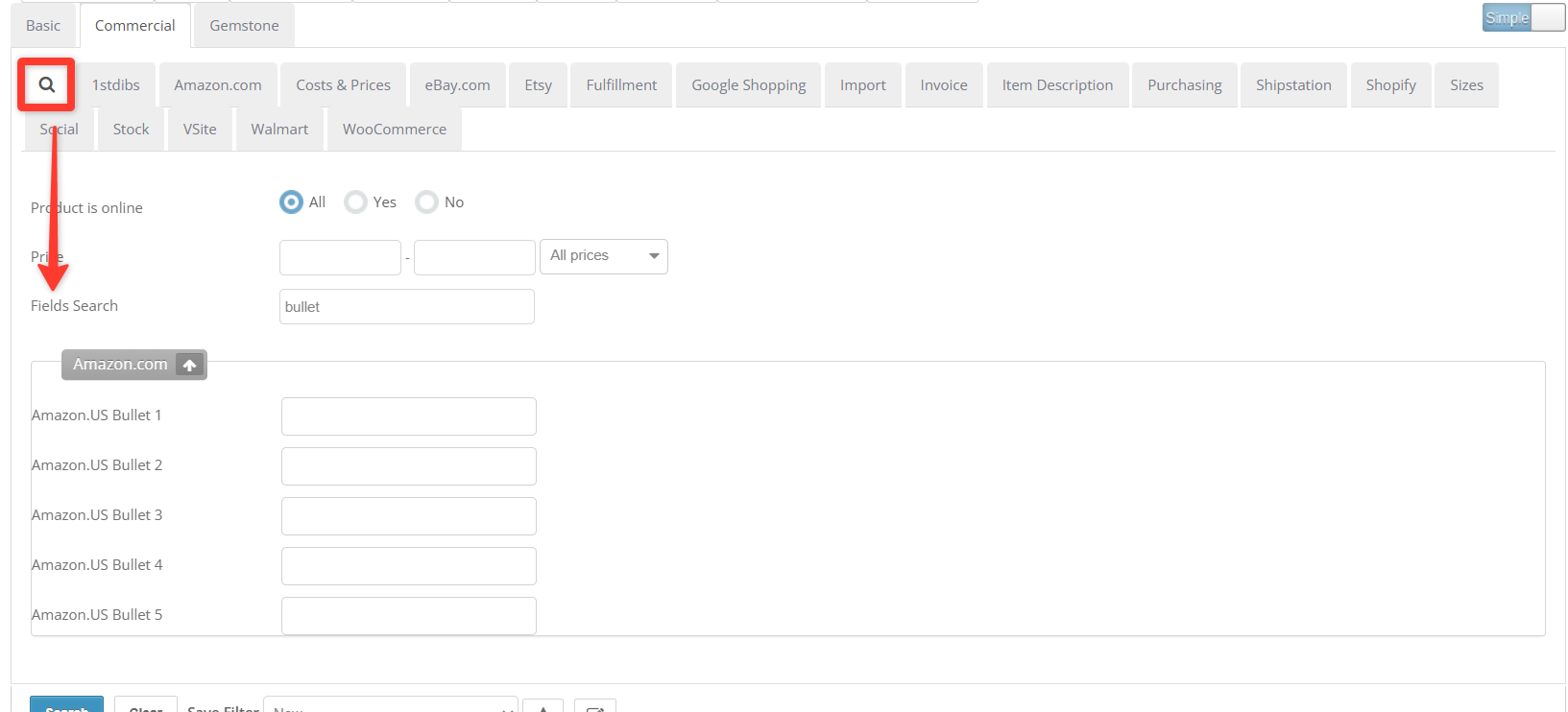
Fields search
Use Fields search on Commercial tab to quickly find the parameter you need instead of browsing the full list.
Enter a field name or part of its name. Valigara will display the matching filter fields so you can quickly set its value.
Example
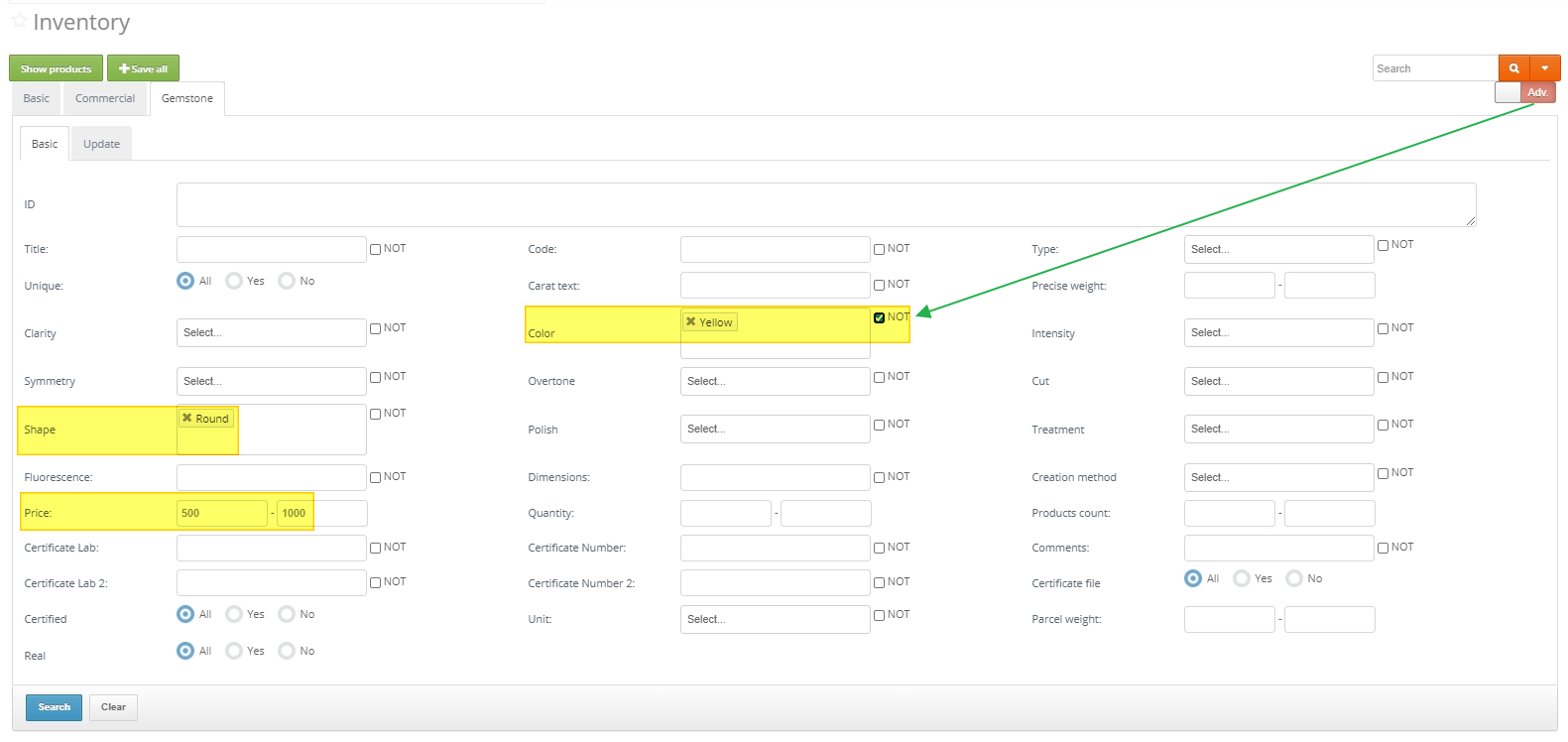
To find products with round gemstones priced between $500 and $1,000, excluding yellow gemstones:
- Go to Catalog and enable Advanced mode.
- Open the Gemstone tab and select Basic.
- Select Round in the Shape field.
- Enter 500-1000 in the Price fields.
- Select Yellow in the Color field and set the condition to NOT.
 |
|
Was this article helpful?
That’s Great!
Thank you for your feedback
Sorry! We couldn't be helpful
Thank you for your feedback
Feedback sent
We appreciate your effort and will try to fix the article